Gemini in Google Workspace: a practical work guide
· Tool guide
If your business already uses Gmail and Google Docs, Gemini may help with work inside those apps. Start with one complete workflow, such as turning reviewed meeting notes into a customer follow-up, rather than enabling features and hoping people find a use for them.
Worked example: a fictional meeting follow-up. Features and account controls change, so check the linked docs.
1. Check the edition and settings first
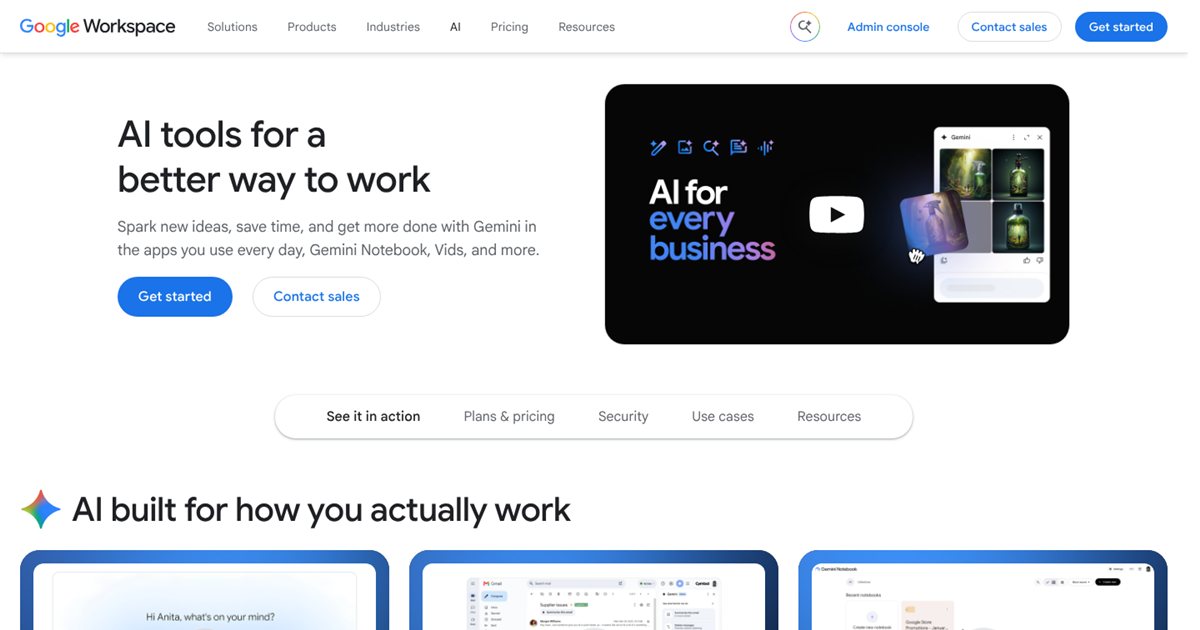
Google's current Workspace comparison lists Gemini in Gmail for Business Starter, with broader Gemini features across apps on Business Standard and higher editions. The exact feature still matters: do not assume every Workspace plan includes every Gemini capability, or that everyone needs a separate add-on.
Ask your administrator to check the assigned edition, enabled services, smart-feature settings and sharing policies. For Meet's “Take notes for me”, check the meeting organiser's eligibility and the relevant administrator and host settings. Supported languages and meeting conditions also apply.
Do not buy a wider rollout until one intended user can complete the actual workflow. Check UK pricing and commitment terms directly; headline prices can be regional, promotional or tied to annual billing.
2. Start with a reviewed follow-up email
Use a non-sensitive internal meeting or fictional notes first. If you use “Take notes for me”, explain its use to participants and follow your organisation's requirements. Start the feature through Meet's note-taking controls and inspect who will receive the resulting document.
AI notes and a transcript are different outputs. Note-taking is not a promise that every word is captured accurately or that a separate transcript is automatically created. Google's guidance says summaries can be incomplete, inaccurate or fail to generate.
After the meeting, open the notes and correct the decisions, owners and dates. Then use the checked content in Gmail or Docs with a prompt such as:
Draft a short follow-up from these approved notes. List only agreed decisions and actions. Keep each action's owner and date exactly as supplied. Put missing dates under “To confirm”. Do not invent promises or imply a proposal was accepted. Use UK English. Keep the email as a draft for review.
Compare the draft with the notes before sending. If a discussion was tentative, retain that uncertainty. An AI summary must not turn “we could explore a pilot” into “the pilot is approved”.
3. Use Docs and Sheets for defined outputs
In Docs, ask for a specific structure using supplied reference material: “Turn this approved outline into a one-page project update, retaining the risks and unanswered questions.” Check facts, names and commitments after generation.
In Sheets, begin with a clean table and a small analysis question. For example, ask for a formula to total enquiries by source, then verify it against a manually checked subset. Check blank rows, date formats, duplicated entries and whether the formula includes the full range. A plausible explanation does not verify the calculation.
Permissions matter when drawing on Drive or other Workspace content. Review folder sharing and use the intended work account. Missing access should be fixed appropriately rather than copying restricted material into another account.
4. Check privacy and retention separately
Google says Workspace customer data is not used to train or improve underlying generative models outside Workspace without permission. Apply that statement to the covered Workspace service, not every personal Google or developer product.
Meeting notes and other saved outputs remain business records with access and retention settings. Google's Meet guidance describes notes saved in Drive and the effect of configured sharing and retention policies. “Not used for model training” does not mean the notes disappear after a meeting.
What to watch for
In your own test, check for an ineligible meeting organiser, note-taking disabled by settings, notes shared with unintended invitees and action items assigned incorrectly. Start with an internal example and inspect both content and access before using the process with customers.
Verdict and next step
Gemini is a sensible candidate when your work already happens in Workspace and the required features are included. Test one notes-to-follow-up workflow, count review time and check accuracy. Use the business AI comparison framework to decide whether expanding it is worthwhile.